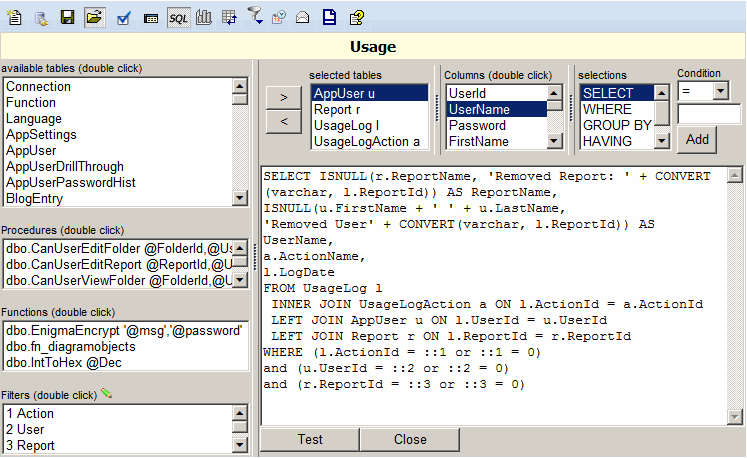
Building a SQL report
To create new SQL report:
- Select a connection. The connection can be setup on the Admin > Sql Connections page.
- You can type or paste the SQL directly into the Sql Text Area.
Click the test button to test your Sql statement.
The result records will be broken into pages. The page size can be specified in the Admin > Setting page.
- A Sql tutorial is available for users who wish to learn Sql.
Click the "Tutorial" button to open the tutorial.
- It is possible to have a report use security based on application or Windows user info.
Following security tokens can be used:
- ::UserId - ReportPortal User ID
- ::UserName - ReportPortal User Name
- ::NtUserId - Windows User ID
- ::Email - Email
- The SQL designer can also be used to create the Sql statement:
- Select an available table.
- Select an alias for the selected table. When the next table is selected a
dialog will prompt for the
column names on which the table has to be joined.
- Select the table and than the column you would like to use in you Sql
statement.
- Select the Sql clause where the column will be placed.
Available options are: SELECT, WHERE, GROUP BY, HAVING, ORDER BY.
- If the WHERE or HAVING clause is selected, enter the value in the condition textbox.
- Click the "Add" button to add the column to the statement.
- Click Test button or "Show table result" toolbar button to run the SQL against the selected connection.
- Click Pivot tool bar button to move rows to columns and column to rows.
- Click "Break results into pages" toolbar button to change number or rows
per page and number of rows per page when report is printed.
- Click the Save button to save the report.
- Click Subscription toolbar button to schedule the report to be delivered to specified users.