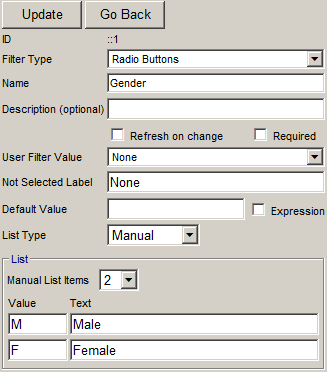
Creating a new filter
- In the report designer, click the Filter toolbar button and then click Add
- Select Type: Select Box, Text Box or Check Box, etc.
- Enter Description
- Enter the Default value
- Select Width for Select Box, Text Box, Combo, Combo Autocomplete and DB Lookup
- Select List type for Select Box, Combo, Combo Autocomplete, DB Lookup and Radio Buttons
There are three available options:
- Table - Select table, key and name columns.
- SQL Based - SQL statement that returns two columns. First column is for the values. Second column is for the text.
- Shared - SQL defined in a Shared filter
- Manual - Static list of keys and values.
- Click the Update button to save the filter.
- Click the Go Back button to return to the report designer
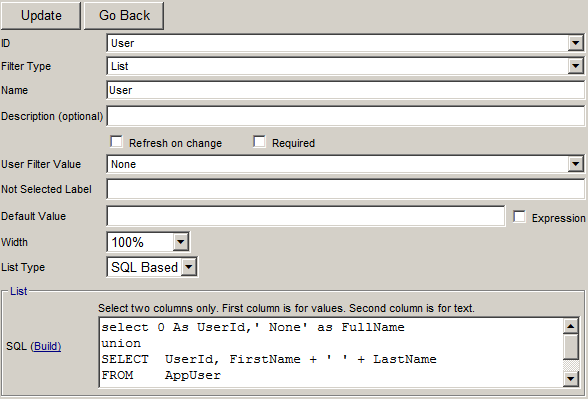
Filter Type: Select Box
Paste or build the SQL statement.
The SQL statement should have two columns only. First column is for the values.
Second column is for the text.
Select if the report should refresh on change.
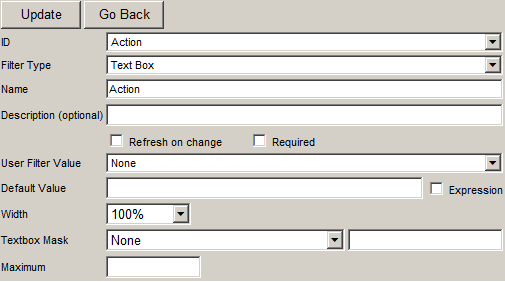
Filter Type: Text Box
Specify the maximum number of character.
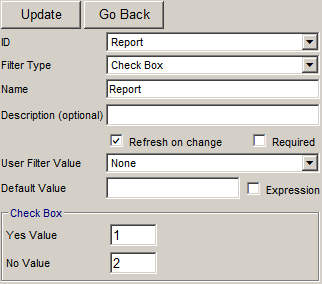
Filter Type: Check Box
This type is useful for "Yes" or "No" type of column.
Filter Type: Date Picker
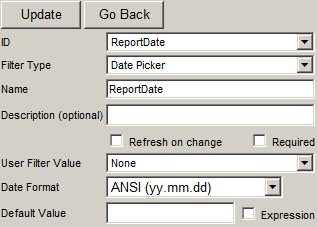
Calendar control to pick a date for a date column.
Filter Type: Combo
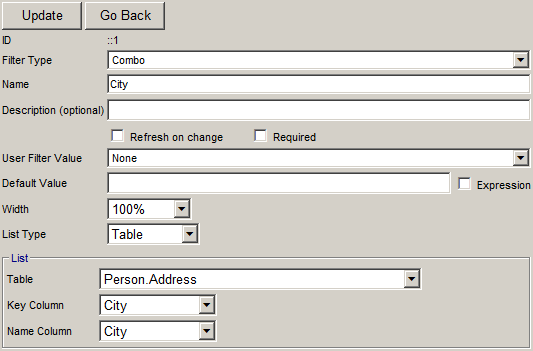
Dropdown list with an ability to enter text into it.
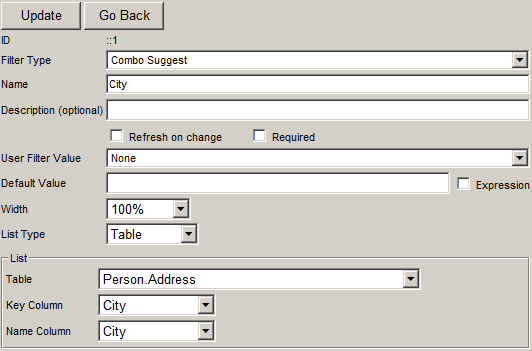
Filter Type: Combo Autocomplete
Dropdown list is filtered dynamically as user enters data
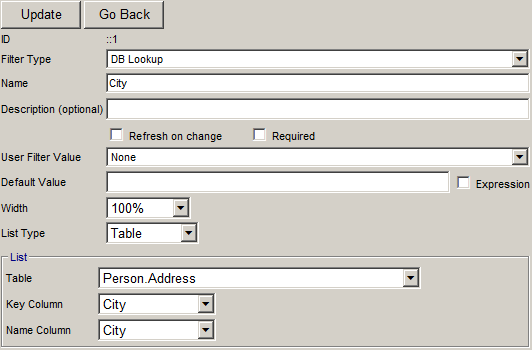
Filter Type: DB Lookup
Lookup list from another table. This type is useful for large lists (200 records and up).
Filter Type: Radio Buttons
This type is useful when there are few options very long descriptions such as in a questionnaire.