Managing report subscriptions
You can schedule a report to be regularly delivered to a user or a group of users.
Currently, only OLAP and SQL reports can be scheduled for delivery.
To schedule a report for delivery right click on a report and select "Subscriptions".
A report can have multiple subscriptions tied to it.
A subscription can be setup by a user that is allowed to edit the report.
However, an administrator can allow viewers to subscribe to reports
(Admin> Settings > Subscriptions > Allow report viewers to subscribe).
This kind of subscription can only deliver the report to the viewer herself.
Private ("My Reports") reports can only be delivered to the owner.
Each subscriber will see only his or her data.
Each report delivered to the user runs within the user security context
(Windows User and Password) of the subscriber.
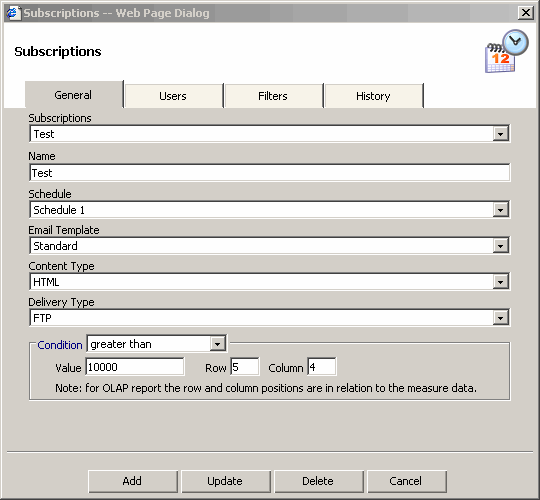
The general tab provides the following options:
- Name - name of the subscription.
- Schedule - list of shared schedules that are defined by an administrator
(Admin>Shared Schedules).
The list can also have a "Private Schedule" option if private schedules are allowed
(Admin> Settings > Subscriptions > Allow private schedules)
- Email Template - list of email templates that are defined by an
administrator (Admin > Email Template).
An administrator can also define a default email template
(Admin> Settings > Subscriptions > Email Template)
- Content Type - file format to be delivered to the subscriber.
The following types are currently supported: HTML, PDF, and Excel.
- Delivery Type - different options for the report to be delivered.
- Attachment - The report is attached to the email
- File - The report is copied to a folder on a web or file server.
The report subscriber will receive an email with the link to the file.
This option helps reduce the size of the email message.
This option will not be visible until setup by an administrator.
- FTP - The report is copied to a folder on an FTP server.
The report subscriber will receive an email with the link to the file.
This option helps reduce the size of the email message.
This option will not be visible until setup by an administrator.
- Link URL - The report subscriber will receive an email
with the link to the report. No file is created.
- Condition - a report can send only when a certain condition is met. For example, if a report needs to be delivered only if a number in a cell (row1, column 2) exceeds 1,000. The condition will be "greater than" and the value will be 1000.
- Value - value for the condition. The value can be text of a number. If it a text "equal to" should be used. For OLAP report the row and column positions are in relation to the measure (numeric) data.
- Row - row position of the value to be inspected
- Column - column position of the value to be inspected
Adding users and roles
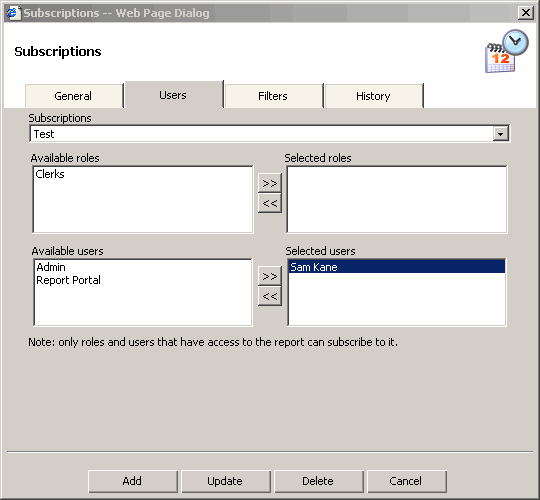
- You can schedule a report to be regularly delivered to a user or a group of users.
- Only users that can edit the report can create a subscription
Setting filters
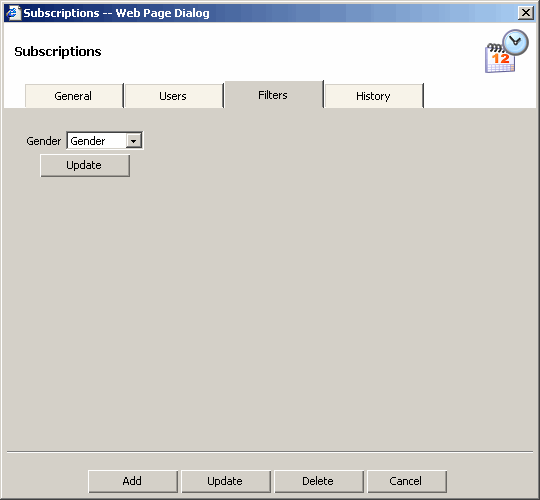
Sometimes a report filter has to be parameterized based on user or role.
To do this the User filter filter needs to be set for the report and the user or role.
- The User Filter value needs to be defined for the site.
- The User Filter value needs to be set for a user
or a role.
- The User Filter value needs to be set for the report.
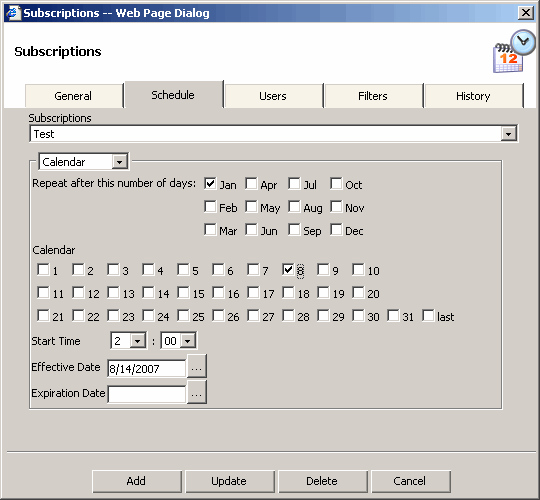
Private Schedule
A "Private Schedule" can be selected for a subscription
only if private schedules are allowed by an administrator.
(Admin> Settings > Subscriptions > Allow private schedules)
The following schedule types are supported:
- Hourly - deliver the report every hour
- Daily - deliver the report after a number of days
- Weekly - deliver the report on the following weekdays (Monday, Tuesday, etc.)
- Weekly skip - deliver the report on the following weekdays (Monday or Tuesday) skipping every other week
- Week number - delivers the report on the following weekdays (Monday or Tuesday); second seek of month on the following months (January, February)
- Calendar - deliver the report on the following days (1st, 2nd and the last day of the month); on the following months (January, February)
- Run once - deliver the report for a specific time, once.
- URL Trigger - allows you to trigger the report subscription
from an external application. The URL look like this: http://MyServer/reportportal/scheduler/UrlTrigger.aspx?id=155
Logging of report delivery
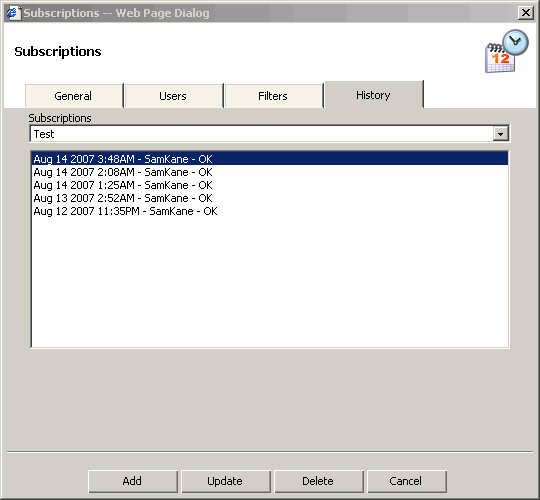
The History lets you see the status of the report delivered to subscribers.
You can see the time, user name and status.