Connecting to a cube
- If the Analysis Services server is not located on the web server and you indent
to access the server via HTTP(S), set up the name of the Analysis
Services server under admin > settings.
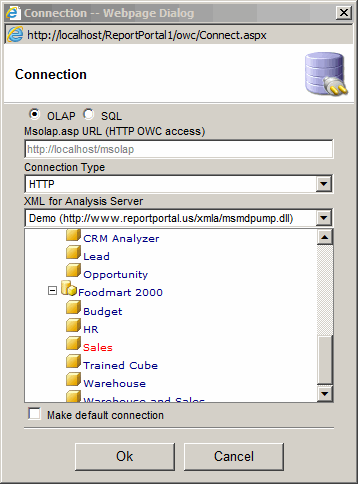
- Click the "Connect to cube" icon. The connection
panel will appear.
- Select a server.
- Select a catalog.
- Select a cube.
- Select the connection type:
- Direct - regular connection done via MSOLAP OLEDB Provider.
- HTTP - connection via owc\msolap.asp. This option is useful when the application
is
used by Internet users or by users on a different domain.
This option does not provide any security.
The Anonymous User for msolap.asp must have full access the cube.
- HTTP secure - connection via owc\msolap.asp. This option is useful when the
application is
used by Internet users or by users on a different domain.
The application will pass the Windows User Name and Password as specified in the Admin > Users page.
If no Windows User Name is specified for the report user the Windows User Name
of the report creator will be used instead.
- HTTPS - same as "HTTP" option only the communication is done via the SSL (Secure Socket Layer).
Make sure the SSL certificate is installed on the IIS before using this option.
- HTTPS secure - same as "HTTP secure" option only
the communication is done via the SSL. Make sure the SSL certificate is
installed on the IIS before using this option.
- Click the "Ok" button. The PivotTable field list will show dimensions for the cube.
Connecting to a relational table
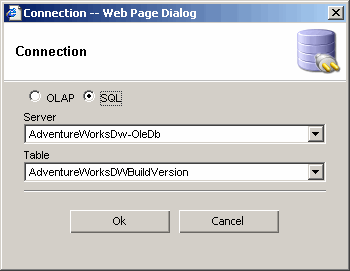
- Select SQL Connection. The connection can be defined by going to Admin > Connections.
- Select Table.
- Click the "Ok" button. The PivotTable field list will show columns for the table.