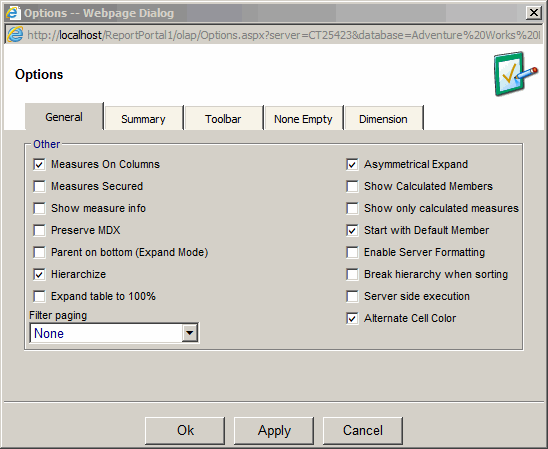
General Options
- Measures on columns - places measures on rows or on columns.
- Measures Secured - should be used when Analysis Services security is applied on measures
- Show calculated measure info - will show calculated measure comments or formula if no comment is provided
- Preserve MDX - allows Custom MDX to be preserved when a filter is changed
- Parent on bottom (Expand Mode) - Child members will precede their parents
- Hierarchize - Organizes the members into hierarchical order defined in SSAS
- VisualTotals - totals the values of the child members in the specified set
and ignores child members that are not in the set in calculating the result totals.
- Expand table to 100% - increase the width of the data table to consume the width of the frame
- Filter Paging - improves the performance when filters have too many members.
- Asymmetrical Expand - This option is relevant only to the Expand Mode. Example:
two dimension are selected on rows: Gender and Educational Level.
Expanding Educational Level for "Male" will NOT cause expanding Educational Level for "Female".
- Show Calculated Members - shows calculated members defined on a dimension
(such as current day on the time dimension)
- Show only calculated measures - will hide measures that are not calculated
- Start with Default Member - as opposed to the highest member in the hierarchy.
- Enable Server Formatting - for Fore Color and Back Color
(this feature provides the ability to color one measure based on another)
- Break hierarchy when sorting - when in the drill-down mode the sort operation will create
different sort orders for each parent member.
Check this option to ignore the member hierarchy.
- Server side execution - use to convert XMLA response into HTML on the web server. When this option
is unchecked the XMLA response is converted into HTML in the browser. This option can be
used to improve the performance for XMLA requests that return over 50 MB of data.
- Alternate Cell Color - for better readability, this option will format every other row differently.
To choose different format, please update ".CellData2" class under Admin > Themes and Styles.
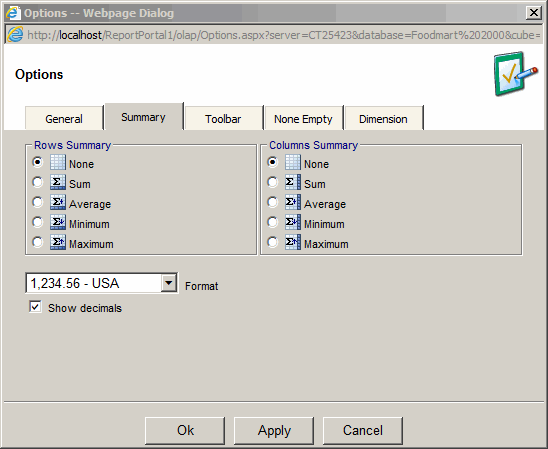
Summary Options
- Rows and Columns Summary options allow setting rows and
columns summary to one of five possible states:
- None
- Sum
- Average
- Minimum
- Maximum
- The format used by the summary column.
- Summary option is also accessible via the context menu in the drill-down mode.
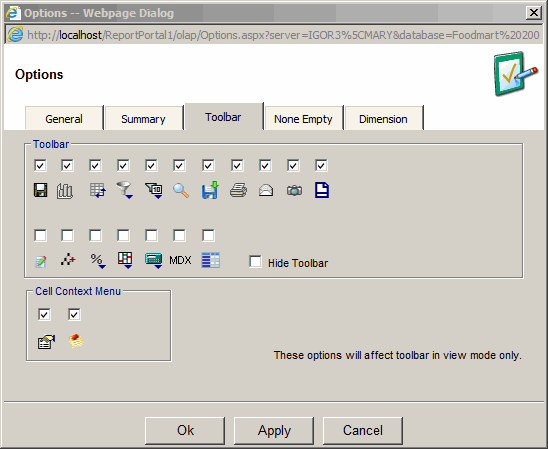
Toolbar Options
- Gives the ability to choose the toolbar buttons to be visible in the view mode.
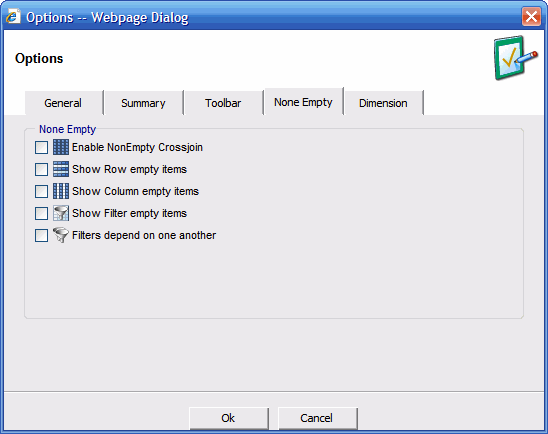
None Empty Options
- Enable NonEmpty Crossjoin - hide rows and columns that do not have any data.
Provides the best performance but eliminates calculated members.
- Show Row empty items - hide rows that do not have any data
- Show Column empty items - hide rows that do not have any data
- Show Filter empty items - hide filter items that do not have any data
- Filters depend on one another - hide filter items that do not have any data
based on selection from other filters.
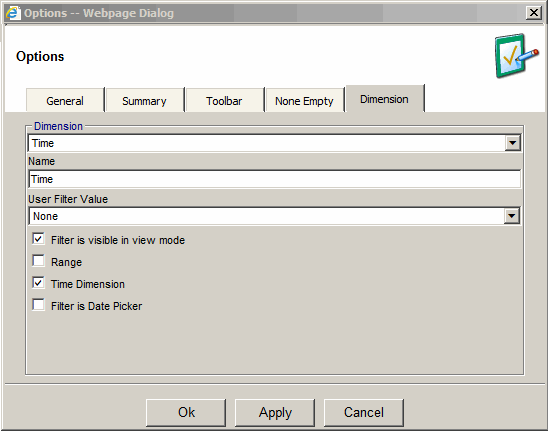
Dimension Options
- Provides the ability to change name of a dimension
- Provides the ability to hide the filter in the view mode
- Provides the ability to choose a date picker filter for a data dimension
- Provides the ability to choose a user filter default value for a filter