
Map Editor lets you edit and manage map charts. There two types of map charts:
An entity is a group of shapes. For example, UK entity will consist of four shapes (England, Northern Ireland, Scotland and Wales.) You can select an entity by choosing it from the list of entities or by clicking a shape. When an entity is selected you will see one or more boxes on the right. Each box represents a shape. Each line of text box is the coordinate (x,y) of the shape.
Buttons:
Chart Options:
Entity options:
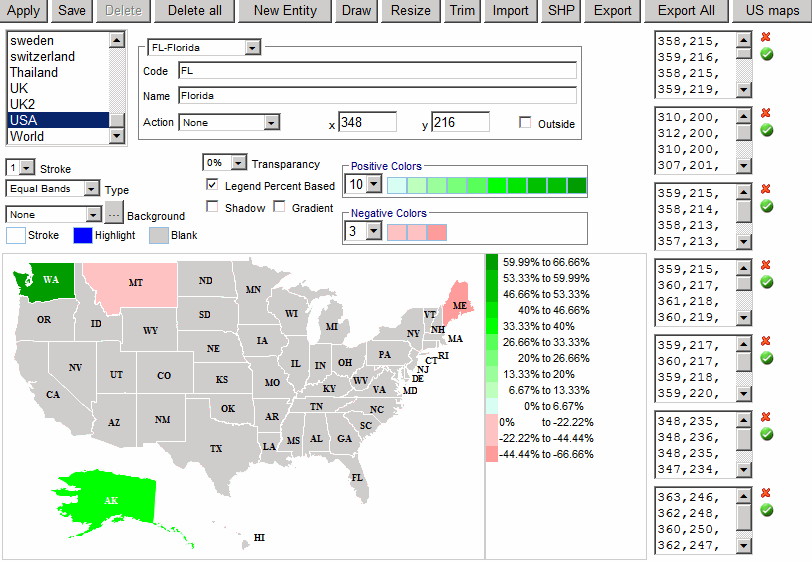
Below is the description of the XML file format:
| Name | Description | Sample Data | ||||||||||||||||||||||||
|---|---|---|---|---|---|---|---|---|---|---|---|---|---|---|---|---|---|---|---|---|---|---|---|---|---|---|
| image | Optional. Background image relative to the Maps folder (C:\Inetpub\wwwroot\ReportPortal\olap\Maps). | USA.gif | ||||||||||||||||||||||||
| opacity | Polygon transparency. Especially useful when a background image is defined. | 60% | ||||||||||||||||||||||||
| strokeWeight | Polygon border width | 1 | ||||||||||||||||||||||||
| strokeColor | Polygon border color | black | ||||||||||||||||||||||||
| highlightColor | Color used for the mouse over effect | blue | ||||||||||||||||||||||||
| legendPercentBased | 1 - Legend will show percents; 0 - Legend will show numbers |
1 | ||||||||||||||||||||||||
| positiveColors | List of colors to be used in the legend for the positive number range. | <#DEFFDE> <#BDFFBD> |
||||||||||||||||||||||||
| negativeColors | List of colors to be used in the legend for the negative number range. | <#FFDEDE> <#FFBDBD> |
||||||||||||||||||||||||
| entity |
Each map file can have many entities. For example, in United States each entity can represent each state.
|
|||||||||||||||||||||||||