
Site Include
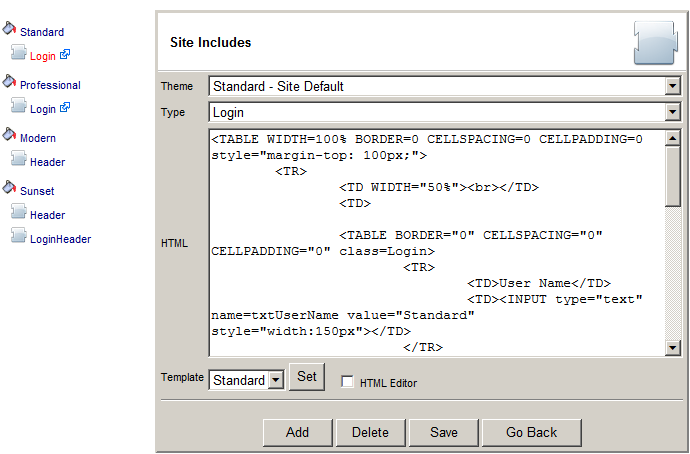
Site Includes can help you customize the application. Site Include can be attached to a Theme.
Theme can be changed for the application, a user or a role.
- Select theme that will use this Site Include. Select your current theme if you want to see immediate feedback.
- Select the Site Include type: Header, Footer, Login, Login , Login Header
- Select a Template and click set. The template gives you the idea f the kind of HTML is currently used or expected.
- Click HTML Editor check box if you want to edit the HTML using an HTML editor
- Click Add to add the Site Include.
- To edit an existing Site Include, select it from the left list, change the HTML and click Save.
- To delete an existing Site Include, select it from the left list, change the HTML and click Delete.
- To test a Login Site Include, click on the link icon next to Login.
This option also allows for creating the URL to the "White Labeled" site.
Be careful because you can accidently make the application unusable. If this happens, delete all Site Includes
from ReportPortal database using this SQL:
delete from dbo.SiteInclude
and restart IIS or the application pool.